
You're about to run your first Facebook or Instagram ads, and every guide says the same thing: "install the pixel first." Or maybe you've run ads for years, the pixel is "somewhere" on your site, and you've never been quite sure what it does or whether it's working.
So what is the Meta pixel? It's a small piece of code on your website that tells Meta what people do after they click your ads. Without it, Meta can show your ads but has no idea whether anyone bought. This guide explains how it works, what it tracks, why it matters so much for your ad results, how to install it, and the limits you should know about.
The Meta pixel in one paragraph
The Meta pixel is a snippet of JavaScript (a common type of website code) that you add to every page of your site. When someone visits, the pixel loads in their browser, the program they use to view websites, like Chrome or Safari. It then sends Meta short messages about what that visitor does: they viewed a product, added it to cart, started checkout, bought. Meta uses those messages to report your ad results, to find more people likely to buy, and to build audiences you can target.
Meta pixel vs Facebook pixel
If you've seen both names, they're the same thing. It was called the Facebook pixel for years and was renamed the Meta pixel after Facebook's parent company became Meta. Old guides, apps and settings may still say "Facebook pixel." Same tool.
Why is it called a pixel?
The name is historical. Early tracking tools worked by loading a tiny, invisible one-by-one-pixel image, and the request to load that image is what carried the data. Today's Meta pixel is mainly a script, but the name stuck.
What the Meta pixel tracks
The pixel reports events. An event is one thing a visitor did, along with details about it.
Standard events
Meta defines a set of standard events with fixed names, so its systems know what each one means. The ones most stores care about:
| Event | What it means |
|---|---|
|
| Someone loaded a page |
|
| Someone viewed a product page |
|
| Someone searched your store |
|
| Someone added a product to their cart |
|
| Someone started checkout |
|
| Someone entered payment details |
|
| Someone completed an order |
Events can carry parameters, which are extra details. A Purchase event usually includes the order value, the currency and the products bought. Without the value, Meta knows a sale happened but not what it was worth, so it can't tell your $20 orders from your $400 ones.
You can also create custom events for actions that don't fit a standard name, but for most stores the standard ones cover everything that matters.
Who did it: matching events to people
An event on its own isn't very useful to Meta. It needs to know who did it, so it can connect the purchase to the person who saw your ad. The pixel helps in a few ways:
- Cookies. A cookie is a small note a website leaves in the browser to recognize it later. The pixel sets a cookie called
_fbpthat works as a browser ID. When someone arrives by clicking your ad, Meta adds a click ID to the link (thefbclidyou sometimes see in URLs), and the pixel stores it in a cookie called_fbc. - Browser details. The pixel's messages come with the visitor's IP address (roughly, the internet address of their connection) and user agent (a short description of their device and browser).
- Advanced matching. If the visitor types in their email or phone number, for example at checkout, the pixel can send it to Meta in hashed form. Hashing scrambles a value into a code that can't be turned back into the original, and Meta compares it with its own hashed records. You can turn on automatic advanced matching in Events Manager.
Meta grades how well your events can be matched to people with a score called Event Match Quality, from 0 to 10. More of these clues, sent correctly, means a higher score.
Why the Meta pixel matters for your ads
It's tempting to think of the pixel as a reporting tool. It's much more than that. It feeds three things that directly decide how well your ads perform.
1. Measuring results
Without the pixel (or something sending the same events), Ads Manager can show you clicks and spend but not purchases or revenue. You couldn't calculate ROAS, return on ad spend: the revenue from your ads divided by what you spent on them.
2. Teaching Meta who to show your ads to
This is the big one. When you run a campaign optimized for purchases, Meta looks at the people who bought and tries to find more people like them. Every purchase the pixel reports is a lesson. Every purchase it misses is a lesson Meta never gets.
Here's a simple way to picture it. Say 100 people bought from your ads this week. If the pixel reports 100, Meta learns from 100 buyers. If it reports 70, Meta learns from 70, and those 70 may not be a fair sample. If the missed buyers were mostly Safari users or people who use ad blockers, Meta's picture of "your customer" is skewed toward everyone else. (The numbers are illustrative, but the effect is real: missing data isn't random, so it bends what the algorithm learns.)
3. Building audiences
The pixel lets you create custom audiences from site behavior, such as "people who added to cart in the last 14 days but didn't buy," for retargeting. It also gives Meta a base for lookalike audiences: new people who resemble your visitors or buyers.
How to set up the Meta pixel
There are two parts: create the pixel in Meta, then put it on your site.
Step 1: create it in Events Manager
- Open Meta Events Manager, the part of Meta's business tools that manages the data you send.
- Connect a new web data source. Meta may call it a dataset in newer screens; the pixel lives inside it.
- Name it and copy the pixel ID, the number that identifies your pixel.
One pixel per website is usually right. Several pixels on one site tend to cause confusion and duplicate data.
Step 2: add it to your site
You have three common routes:
- A platform integration. On Shopify, Meta's Facebook & Instagram app connects your pixel without touching code and sends standard ecommerce events for you. Most store platforms have something similar. This is the easiest and safest route for most stores.
- Google Tag Manager. If your site already uses Tag Manager to manage tracking code, you can add the pixel there.
- Manual install. Paste the pixel's base code into the header of every page, then add event code where each action happens. This needs someone comfortable editing site code.
Whichever you pick, use one route. Installing the pixel through an app and pasting the code by hand is a classic way to send every event twice.
Step 3: check that it works
- Meta Pixel Helper is a free Chrome extension from Meta. Visit your site with it installed and it shows whether the pixel fired on that page and which events it sent.
- Test Events in Events Manager shows events arriving in real time while you click around your site.
- Place a test order if you can, and confirm the
Purchaseevent arrives with the right value and currency.
Common Meta pixel mistakes
- Duplicate pixels. Two installs, through two different methods, double your events. Your purchases look higher than your real orders.
- Missing purchase value. A
Purchasewith no value or the wrong currency leaves Meta unable to optimize for revenue. - Purchase firing on page refresh. If the order confirmation page sends a purchase every time it loads, a shopper who refreshes or revisits counts as two sales.
- Pixel missing from checkout. Some setups track the store pages but not checkout, so
InitiateCheckoutandPurchasenever arrive. - Never checking after a site change. A new theme, app or checkout update can silently break the pixel. Check events after any change.
Where the Meta pixel falls short
The pixel's strength is that it runs in the browser and sees everything the browser knows. That's also its weakness. The browser is no longer a dependable place to send data from:
- Ad blockers can stop the pixel from loading, so nothing is sent at all.
- Browser privacy features, like Safari's tracking prevention, limit how long cookies last. A shopper who clicks your ad and buys a week later may no longer carry the click.
- Closed tabs and slow pages. If the shopper leaves before the confirmation page finishes loading, the purchase never fires.
- Consent choices. If a visitor declines tracking, the pixel shouldn't send their data, and that's how it should be.
None of this throws an error. Sales just quietly go missing from Meta's view, and your ads learn from a smaller, skewed set of buyers.
The fix: pair it with the Conversions API
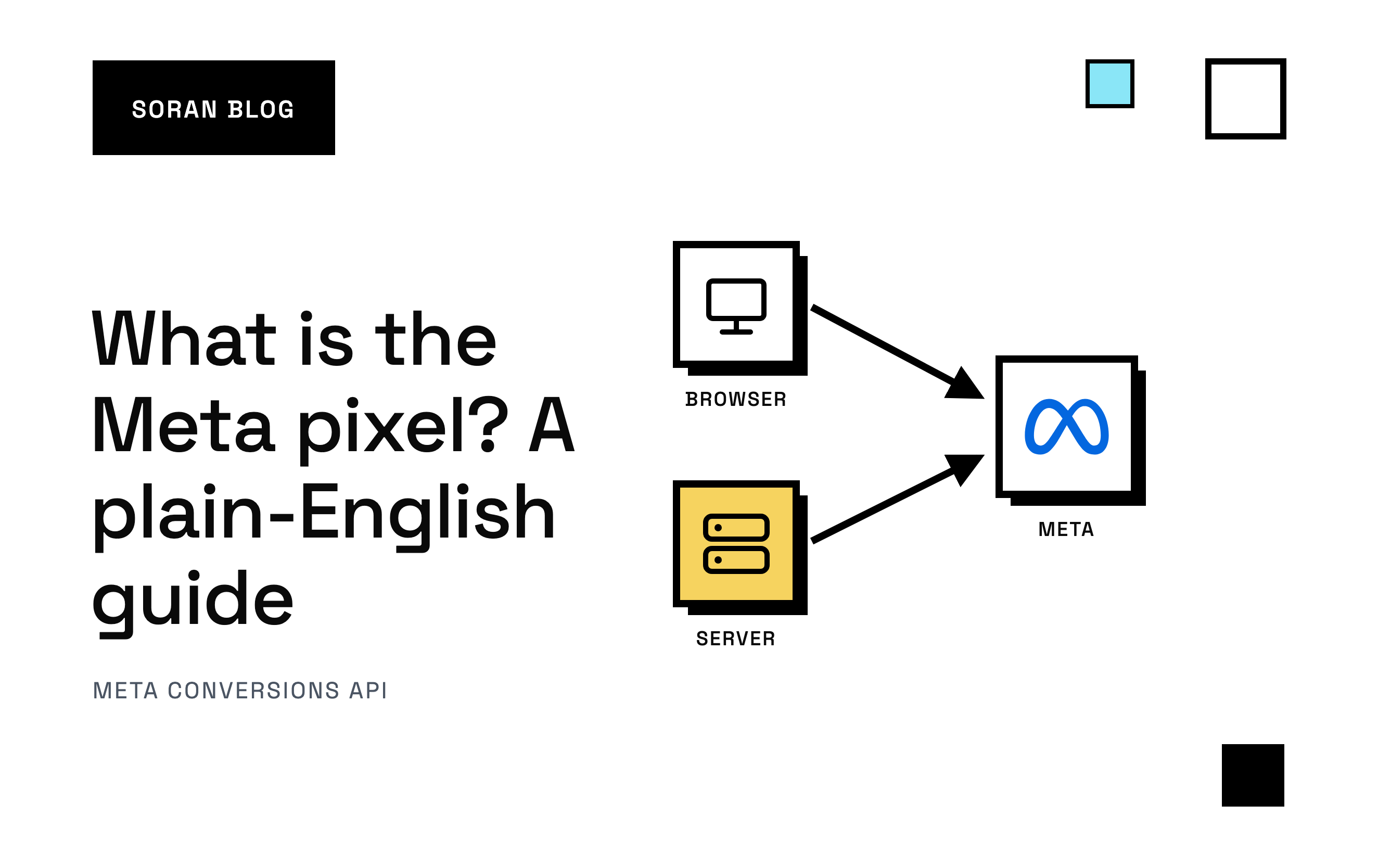
Meta's answer is the Conversions API (CAPI), which sends the same events from a server, a computer that runs your store's systems behind the scenes. Nothing in the shopper's browser can block a server. Meta recommends running both the pixel and CAPI together, with a shared event ID (a reference number on each event, ideally your order ID) so it can recognize two reports of the same sale and count it once.
The pixel keeps doing what it's good at: capturing rich browser details. The server catches what the browser drops. For a step-by-step walkthrough on Shopify, see how to set up the Meta Conversions API on Shopify , and for the bigger picture, server-side tracking for Shopify .
A quick Meta pixel checklist
- One pixel, installed one way, on every page including checkout.
- Standard event names for the actions that matter, especially
Purchase. - Value and currency on every purchase.
- Automatic advanced matching turned on, so hashed emails and phone numbers help Meta match buyers.
- Verified with Pixel Helper and Test Events, and rechecked after any site change.
- Compared against your real orders. If Meta reports far fewer purchases than your store took, the browser is losing sales.
- Paired with the Conversions API, with matching event IDs, so lost sales still reach Meta.
How Soran handles it
Soran is built for the gap the pixel leaves. It records purchases on the server, so ad blockers, tracking prevention and closed tabs don't lose them. It creates your site tracker for you, and setup shows how many events arrived in the last 24 hours. On Shopify, checkout and thank-you page tracking install automatically when you connect.
Those conversions go back to Meta through the Conversions API with duplicate removal, and you can view and edit exactly which fields are sent. And because every order also lands in Soran's own reports, you're not limited to what Meta tells you: you can see which ads actually earned each sale, with credit split across every visit that led to it. What is multi-touch attribution explains how that works.
Frequently asked questions
Is the Meta pixel free?
Yes. Meta doesn't charge for the pixel or for the events you send with it.
Do I need the Meta pixel if I don't run Facebook ads?
Not really. Its main purpose is measuring and improving Meta ads. If you might run Meta ads later, installing it early means you'll have audience data waiting when you start.
Can I use the Meta pixel on Shopify?
Yes. The simplest way is Meta's Facebook & Instagram app in Shopify, which connects your pixel and sends standard ecommerce events, including purchases, without code.
Why doesn't Meta's purchase count match my store's orders?
A few reasons. The pixel misses some purchases (ad blockers, privacy settings, closed tabs), Meta only counts purchases it can tie to an ad within your attribution settings, and a duplicate install can make the count too high. Comparing the two regularly is the quickest way to spot which problem you have.
Is the Meta pixel enough on its own?
For basic tracking, it works. But because it runs in the browser, it misses sales. Meta recommends pairing it with the Conversions API so purchases still reach Meta when the browser drops them.
Want to stop losing sales the pixel can't see? Book a demo and we'll walk through your tracking.