
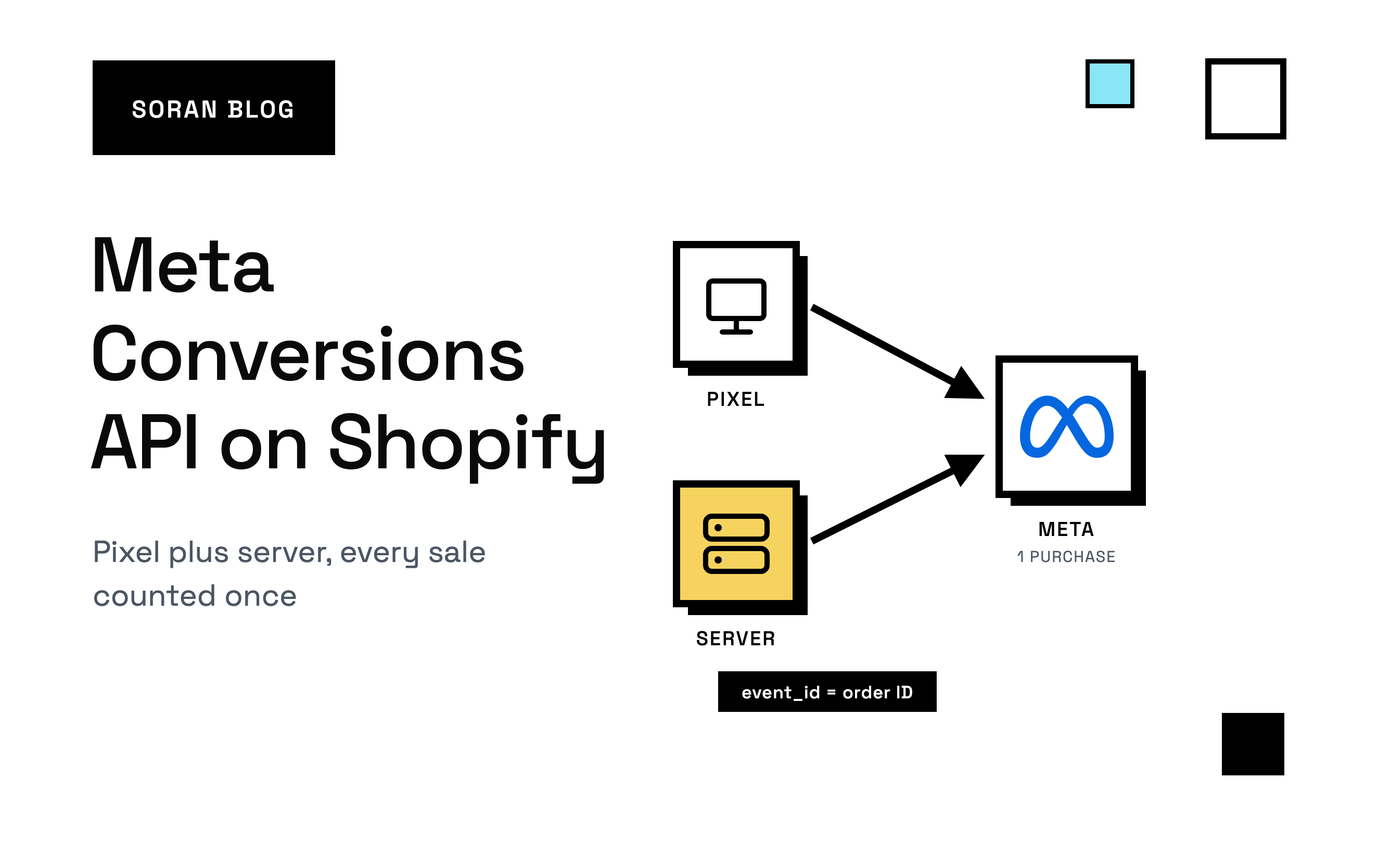
Open Shopify and count yesterday's orders. Now open Meta Ads Manager and count the purchases it reported. If you run ads, those two numbers probably don't match, and Meta's is usually lower.
That gap isn't just a reporting annoyance. Meta uses the sales it sees to decide who to show your ads to next. Every sale it misses is a customer it never learns from, so your campaigns end up optimizing on a smaller, skewed slice of your real buyers.
The Meta Conversions API, usually shortened to CAPI, is how you close that gap. Let's walk through what it is, the ways to set it up on Shopify, and the two details that decide whether it actually helps.
First, why the Meta pixel misses sales
The Meta pixel is a small piece of code that runs in your shopper's web browser. When someone views a product, adds to cart or buys, the pixel sends a little message to Meta saying "this just happened."
The problem is that the browser is not a reliable messenger anymore:
- Ad blockers stop the pixel from loading at all.
- Browser privacy features, like Safari's, delete the pixel's cookies after a few days. A cookie is a small note a website leaves in your browser so it can recognize you later. When it's deleted, Meta can't connect today's purchase to the ad someone clicked last week.
- Shoppers leave early. If someone closes the tab before the order confirmation page finishes loading, the pixel never fires.
Each of these quietly drops a sale from Meta's view.
What the Conversions API does differently
The Conversions API sends the same messages from a server instead of the browser. A server is just a computer that runs your store's systems behind the scenes. It's not on the shopper's device, so ad blockers and browser settings can't touch it.
Here's the catch. When the pixel sends a message from the browser, it automatically includes clues about who the shopper is: their cookies, their IP address (roughly, the internet address of their connection) and their user agent (a short description of their device and browser). A server doesn't have any of that unless you hand it over. Without those clues, Meta gets a purchase but can't tell who made it.
That's why Meta recommends running both. The pixel and CAPI each send every event, and Meta keeps one copy. You get the browser's rich clues and the server's reliability at the same time.
Your three ways to set it up on Shopify
1. Shopify's built-in Meta connection
If you've installed the Facebook & Instagram app in Shopify, it has a data-sharing setting. Turn it up to the higher levels and Shopify starts sending server events to Meta for you.
Good for: stores that only advertise on Meta and want a free start with no code.
The trade-off: you can't see much of what's being sent or change it. It only covers Meta, so TikTok, Google and every other platform need their own setup. And each platform ends up with its own version of your customers, which is why their numbers never agree.
2. Server-side Google Tag Manager
Google Tag Manager is a tool for managing tracking code. Its server-side version lets you run your own little tracking server (on Google Cloud, or through a hosting service like Stape). Your store sends events to it, and it forwards them to Meta.
Good for: teams with a developer who wants full control.
The trade-off: you pay for the hosting and you own every moving part. Someone has to set up which data your store sends, wire up the duplicate protection and the shopper clues we cover below, and fix things when Shopify changes its checkout. Most of the mistakes in the rest of this guide happen here.
3. A server-side tracking platform
Tools like Soran do the collecting and forwarding for you. They capture events on your store, keep a copy in your own analytics, and send them to Meta's Conversions API alongside the pixel, with the hard parts already handled. We compare the main options in top server-side tracking tools .
Good for: stores running ads on more than one platform, or anyone who wants CAPI working without babysitting it.
Whichever route you pick, two things decide whether it works: counting each sale once, and helping Meta recognize who bought.
Detail #1: making sure Meta counts each sale once
If the pixel and the server both report a purchase, Meta now has two messages about one sale. It needs a way to tell they're the same.
It does that by comparing two labels on each message:
- The event name, like
Purchase. It has to be spelled exactly the same on both.Purchaseandpurchasecount as different events. - The event ID (
event_id). This is a reference number you attach to the message. If both messages carry the same event ID, Meta knows they describe the same sale and keeps one. This is called deduplication.
Think of it like two friends telling you about the same party. If they both say "Sam's birthday on Friday," you know it's one party. If one says "Sam's birthday" and the other says "a party on Friday," you might think there were two.
When this goes wrong, it goes wrong in one of two ways:
- Every sale counts twice. The event IDs don't match, so Meta keeps both copies. Your ROAS (return on ad spend: revenue from ads divided by what you spent) suddenly looks amazing, and it's completely wrong.
- Sales disappear. A setup that tries to switch one side off can end up with neither copy arriving.
So what should the event ID be? For purchases, use the Shopify order ID. The browser and the server both know it, it never changes, and every order has its own. Avoid making up a random number on each side. Two random numbers will never match, and you're back to counting everything twice.
How to check yours: in Meta Events Manager (the part of Meta's business tools that shows the events you send), open your Purchase event and look at the deduplication details. If Meta is reporting close to double your real order count, your event IDs aren't matching.
Detail #2: helping Meta recognize who bought
Getting the purchase to Meta is half the job. The other half is helping Meta figure out who bought, so it can link the sale to the ad that person saw. Meta grades how well you do this with a score called Event Match Quality, from 0 to 10. A sale Meta can't link to a person does very little for your ads.
You help Meta by attaching "customer clues" to each event. These are the ones that matter most:
| Clue | What it is in plain words | Good to know |
|---|---|---|
| Email and phone ( | How the customer contacted you | Scrambled before sending (more on this below). |
| Customer ID ( | Your own ID for this customer | Must be the same value from the browser and the server. |
| Browser ID ( | A cookie Meta's pixel sets to recognize a browser | Only available while the shopper is on your site. |
| Click ID ( | A code Meta adds to the link when someone clicks your ad | Links the sale to that exact ad click. |
| IP address and user agent | The shopper's connection and device | Must be the shopper's, not your server's. |
About that scrambling: before you send an email or phone number, it gets hashed. Hashing turns " sarah@example.com " into a long string of letters and numbers that can't be turned back into the email. Meta does the same to the emails it has on file and checks for matches. So Meta can recognize Sarah without you ever sending her actual email address.
Now for the mistakes we see over and over.
Mistake 1: sending your server's address instead of the shopper's
If the purchase is sent from your server, the IP address Meta sees is your server's, sitting in some data center. Now every single purchase looks like it came from the same computer, and Meta can't use it to recognize anyone. The fix is to note the shopper's IP address and device while they're on your site and pass them along with the order.
Mistake 2: describing one customer two different ways
Say the pixel sends a random browser ID as the customer ID, while the server sends the Shopify customer number. To Meta, those look like two different people. The confusing part is that Events Manager can still show both as "matched," so nothing looks broken. Pick one way to identify a customer and use it everywhere. The Shopify customer ID is a good choice because it stays the same across devices and visits.
Mistake 3: attaching the wrong click to a sale
This one is sneaky. It's tempting to save a customer's latest ad click on their profile and attach it to whatever they buy next. But that gives Meta wrong information, which is worse than none:
- Sarah clicked an ad two months ago, then came back on her own and bought today. Saving the old click on her profile credits today's sale to an ad that had nothing to do with it.
- Two people share a laptop. One clicked your ad, the other bought. The click lands on the wrong person's purchase.
The rule: a click belongs to the specific visit and checkout where it happened, not to the customer forever. If you don't know which click led to an order, send the order without one. A missing click ID costs you a little match quality. A wrong one teaches Meta to reward the wrong ad.
One more thing about click IDs: Meta ignores clicks older than 90 days, the lifespan of its click cookie. If you're keeping click IDs around, check their age before sending them.
Your setup checklist
Here's the whole thing as a list you can work through:
- Report purchases from Shopify itself. Shopify can notify your server the moment an order is created (this is called a webhook). That notification arrives even if the shopper never sees the confirmation page.
- Use the Shopify order ID as the event ID on both the browser and server copies of the purchase.
- Grab the shopper's clues while they're on your site: the browser ID, the click ID, their IP address and their device. Pass them along with the order.
- Tidy up email, phone and customer ID, then hash them before sending. "Clean up" means removing spaces, making emails lowercase and writing phone numbers in full international format (like +14155550123), so the same person always produces the same scrambled value.
- Mark events as coming from your website and use the time of the purchase, not the time your server got around to sending it.
- Send test events first. Events Manager gives you a test code so you can check everything before real traffic flows through.
- Watch the first week. Keep an eye on Event Match Quality and deduplication, and fix whichever clue scores lowest first.
How Soran handles it
If that checklist looks like a lot, that's exactly the part Soran takes off your plate.
You connect your Shopify store in a few clicks, with no code to paste. From then on:
- Every purchase reaches Meta, counted once. Soran sends each sale from both the browser and the server and makes sure Meta treats them as the same purchase.
- Meta gets the shopper's real details, never your server's, so purchases can actually be matched to people.
- Clicks are credited to the right sale. Soran connects each order to the visit it came from, and leaves out clicks that are too old or don't belong to that order.
- One customer stays one customer across the browser and the server, so Meta isn't confused by two versions of the same person.
- One setup covers more than Meta. The same events can go to TikTok and other ad platforms without a separate integration for each.
And because every event also lands in your own analytics, you see the whole path each customer took before buying, not just what Meta reports back. That's what makes multi-touch attribution possible: giving credit to every ad and channel that played a part in a sale, not just the last one clicked.
New to all this? Server-side tracking for Shopify covers the bigger picture.
Frequently asked questions
Do I still need the Meta pixel if I use the Conversions API?
Yes. Meta recommends running both. The pixel sees things only the browser knows, like the shopper's cookies and what they did on your site. CAPI catches the events the browser drops. Deduplication makes sure nothing is counted twice.
Is the Conversions API free?
Meta doesn't charge for it. What you pay for is whatever sends the events: Shopify's built-in connection is free, server-side Google Tag Manager has hosting costs, and tracking platforms charge a subscription.
Why is Meta counting my purchases twice?
Almost always, the event IDs from the browser and the server don't match, or the event names are spelled differently. Use the Shopify order ID as the event ID on both sides, and make sure both say exactly Purchase.
What's a good Event Match Quality score?
Higher is better, and Events Manager labels your score from poor to great. The biggest improvements usually come from adding hashed email and phone, sending the shopper's real IP address and device, and including the browser and click IDs when you have them.
Does CAPI get around iPhone privacy settings?
No, and it shouldn't. It helps you keep data the browser would otherwise lose, like a sale whose confirmation page never loaded. But if a shopper has said no to tracking, that choice still applies. Respect consent on the server side just like you do in the browser.
Want Meta CAPI running on your Shopify store without maintaining it yourself? Book a demo and we'll walk through your setup.