
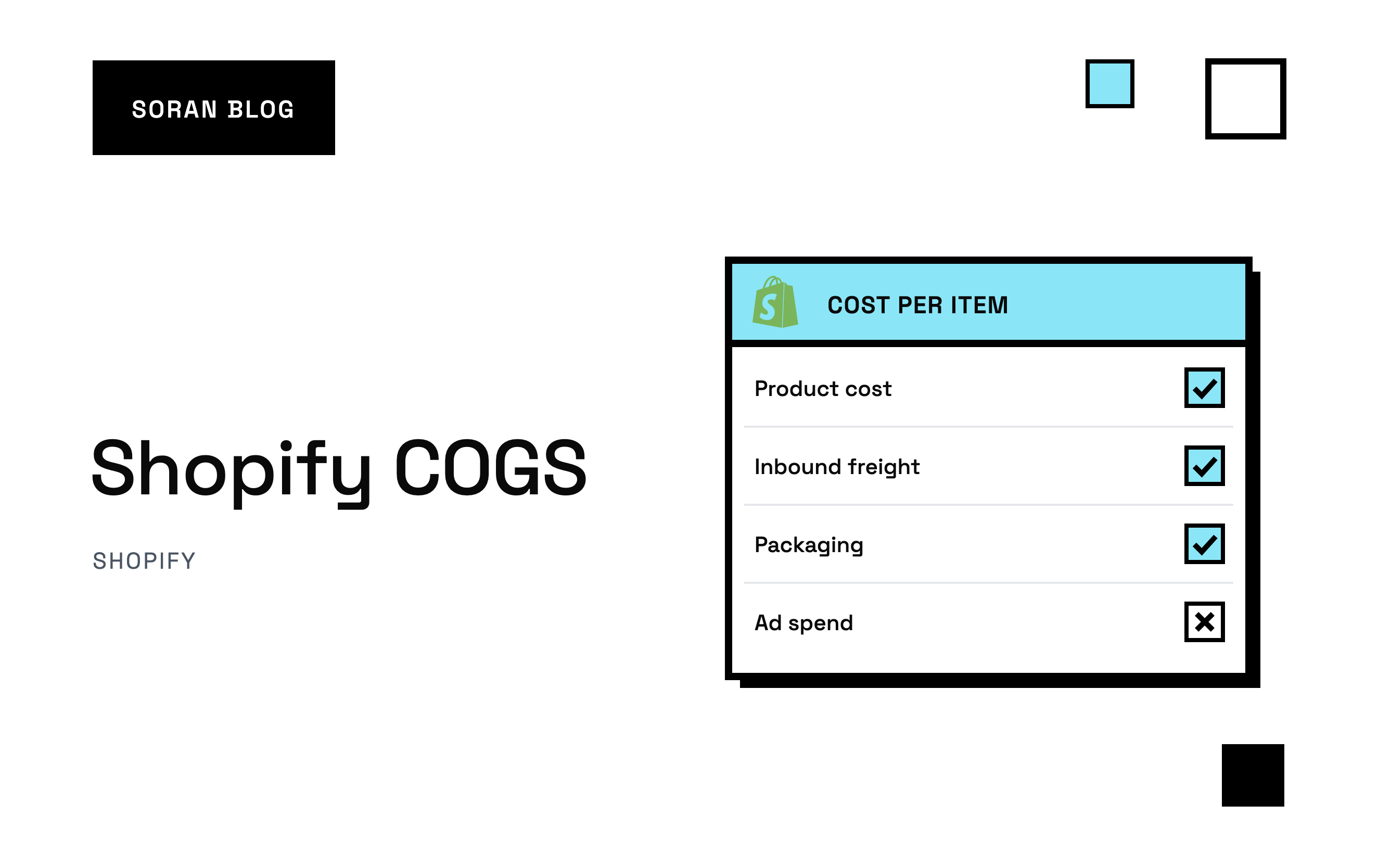
You open your Shopify profit report and the margin looks healthy. Then you notice that a few of your best sellers aren't in it at all. The problem isn't the products. It's your Shopify COGS: nobody ever told Shopify what those products cost, so it has nothing to calculate profit from.
That's what COGS is about. If it's missing, out of date or too low, every profit number built on top of it is wrong, and you can end up pushing ad spend into products that lose money on every sale. This guide covers what COGS really includes, how to enter it in Shopify, and the mistakes that make it lie.
What COGS means, in plain words
COGS stands for cost of goods sold. It's what you paid for the products you actually sold during a period. Not what you bought, not what's sitting on your shelves: only what left the building in a customer's order.
If you bought 500 mugs at $4 each this month but only sold 200, your COGS for the month is 200 x $4 = $800. The other 300 mugs are inventory, stock you own but haven't sold yet. They become COGS later, when they sell.
COGS is the first cost you take off revenue when you work out profit:
Gross profit = net revenue minus COGS
Net revenue is what customers paid you after discounts and refunds. Everything else (shipping, payment fees, ads, salaries) comes off after that. So if COGS is wrong, every profit number further down is wrong too.
What should go into COGS
The short answer: everything it cost to get the product ready to sell and into your stock. Accountants call this the landed cost, meaning the full cost of a product once it has landed in your warehouse.
That usually includes:
- The purchase price you paid your supplier, or your materials and labor if you make the product yourself.
- Inbound shipping and freight, the cost of getting the stock from your supplier to you.
- Import duties and customs fees, if you bring products in from another country.
- Product packaging that's part of the item itself, like the jar a candle comes in or the box a product is sold in.
These usually don't go into COGS, and belong lower down as separate costs:
- Shipping to the customer. It's a cost of fulfilling the order, not of the product.
- Payment processing fees. They depend on the payment, not the product.
- Marketing and ad spend.
- Shopify, apps, rent, salaries and other running costs.
Where exactly the line falls (shipping boxes, say, or warehouse staff) can vary, and your accountant may have a view for tax purposes. What matters most for running your store is that you choose a rule and stick to it, so this month compares fairly with last month.
A worked example of landed cost
Here's a made-up order of stock for a made-up store. The numbers are only there to show the method.
You buy 1,000 water bottles from a supplier:
| Cost | Total |
|---|---|
| Supplier price ($5 each) | $5,000 |
| Freight to your warehouse | $800 |
| Import duties | $400 |
| Branded sleeve ($0.30 each) | $300 |
| Landed cost | $6,500 |
Landed cost per bottle: $6,500 / 1,000 = $6.50.
If you only entered the supplier price of $5, every bottle would look $1.50 more profitable than it is. Sell them at $20 and your gross margin shows 75% when it's really 67.5%. Over a few thousand sales, that's thousands of dollars of profit that doesn't exist.
How to enter COGS in Shopify
Shopify lets you store a cost on each product, and each variant if you have them, in a field called [cost per item](https://help.shopify.com/en/manual/products/details/product-pricing). You'll find it in the pricing section when you edit a product. Once it's filled in, Shopify shows the profit and margin for that item right next to the price, and uses the cost in its profit reports.
Ways to fill it in:
- One product at a time. Open the product and type the cost into cost per item. Fine for a small catalog.
- [The bulk editor](https://help.shopify.com/en/manual/shopify-admin/productivity-tools/bulk-editing). Select several products, choose to edit them together, and add the cost per item column. Faster for dozens of products.
- A CSV import. Shopify's product spreadsheet has a cost per item column. Export your products, fill in the costs, and import the file back. Best for a large catalog.
A few things worth knowing:
- Enter cost at the variant level when it differs. A large and a small size often don't cost the same. One cost for every variant will overstate margin on the expensive one and understate it on the cheap one.
- Shopify records the cost at the time of sale. If you change the cost per item later, past orders keep the cost that was there when they were placed. That's good: your history stays accurate. But it also means fixing a missing cost today won't repair old orders.
- Use landed cost, not just the supplier price. Shopify only knows what you type in. If freight and duties aren't in that number, they aren't anywhere in Shopify's profit figures.
Common Shopify COGS mistakes
Leaving costs blank
This is the big one. Shopify's profit reports only count sales of products that had a cost recorded when they sold, so a product with no cost simply drops out of them. In a spreadsheet, the same blank turns into a cost of zero and looks like pure profit. Either way, your margin is wrong. A new product added in a hurry, a variant added later, a bundle: these are where blanks hide. Check for gaps every time you add products.
Never updating costs
Suppliers raise prices. Freight costs move. If your cost per item is from two years ago, your margins are from two years ago too. Review costs whenever you place a new purchase order, or at least every quarter.
Mixing landed cost and supplier price
Some products have freight baked in, others don't, because different people entered them at different times. Now your margins aren't comparable between products. Pick one method and apply it to the whole catalog.
Forgetting bundles and kits
If you sell a bundle of three products, its cost is the sum of what's inside it, plus any extra packaging. A bundle with no cost, or with the cost of only one item, makes your best deal look like your most profitable product.
Treating an average as exact
If your costs change from batch to batch, you'll often use an average. That's fine. Just know it's an average, and update it when a batch with a very different cost arrives.
Why COGS matters beyond accounting
COGS is not just a tax number. It changes decisions every week.
It tells you how much you can spend on ads. If a $40 product costs $10 to make, there's $30 to cover shipping, fees and the ad that sold it. If it actually costs $22, that room shrinks to $18, and the ROAS you need to break even goes up. ROAS (return on ad spend) is revenue from ads divided by what you spent on them, and break-even ROAS is the point where ads pay for themselves and nothing more.
Here's that in numbers, using made-up figures. Say shipping and fees take $8 per order.
- At $10 COGS, you keep $22 before ads. You break even on ads if each sale costs you under $22.
- At $22 COGS, you keep $10 before ads. Now any sale that costs more than $10 in ads loses money.
Same product, same price, same ads. One version of the store should be scaling up; the other should be cutting back.
It tells you which products to push. Revenue rankings and profit rankings are often different lists. A best seller with a thin margin can be worth less than a quieter product with a fat one.
It makes your margin numbers trustworthy. Gross margin, contribution margin and net margin all start with COGS. Get it wrong and every number below it inherits the mistake.
A COGS checklist for your store
- Work out landed cost for each product: supplier price plus freight, duties and product packaging.
- Enter it in cost per item for every product and variant.
- Check for blanks across your whole catalog, including bundles and newly added items.
- Decide your rules for borderline costs, write them down, and apply them everywhere.
- Update costs with every new purchase order, or at least each quarter.
- Check your margins per product, not just the store average. Anything that looks too good usually has a missing or outdated cost.
How Soran handles it
Soran shows revenue, orders and margin for each product, grouped by product, variant or SKU (the stock code you give each item), so you can see which ones actually make money and not just which ones sell the most.
Cost of goods is one step in Soran's profit report, which walks down from gross revenue through discounts and refunds, cost of goods, shipping and transaction fees to contribution margin. Past cost entries are kept, so when a supplier raises prices, last month's numbers stay as they were. And because Soran also works out which ads earned each order (that's called attribution), you see profit per campaign as well as per product.
Frequently asked questions
What is COGS on Shopify?
It's the cost of the products you sold, entered in Shopify as the cost per item on each product or variant. Shopify uses it to show margin on each product and in its profit reports.
Does Shopify calculate COGS automatically?
Only from what you enter. Shopify uses the cost per item you've set for each unit sold. If a cost is wrong, its figures are wrong too, and if it's blank, those sales are left out of the profit reports.
Should shipping be included in COGS?
Inbound shipping, getting stock from your supplier to you, usually is. Shipping orders out to customers usually isn't. It's tracked as a separate per-order cost.
If I update cost per item, do past orders change?
No. Shopify keeps the cost that was recorded when each order was placed, so changes only affect future sales.
What's the difference between COGS and gross margin?
COGS is a dollar amount: what the products you sold cost you. Gross margin is a percentage: how much of your revenue was left after COGS. A store with $50,000 in revenue and $20,000 in COGS has a 60% gross margin.
Want to see real margin for every product and campaign in one place? Book a demo .